How to Request a Service in the e-Consular
LOGGING IN
1- After registering, go to the e-Consular system (ec-chicago.itamaraty.gov.br) and log in. You can access the platform from your smartphone, computer, or tablet.
- If you have a CPF, click on "Entrar com GOV.BR" (login with GOV.BR).
- If you don't have a CPF, click on "Clique aqui para entrar com email e senha" (click here to log in with your email and password).

CHOOSING THE SERVICE
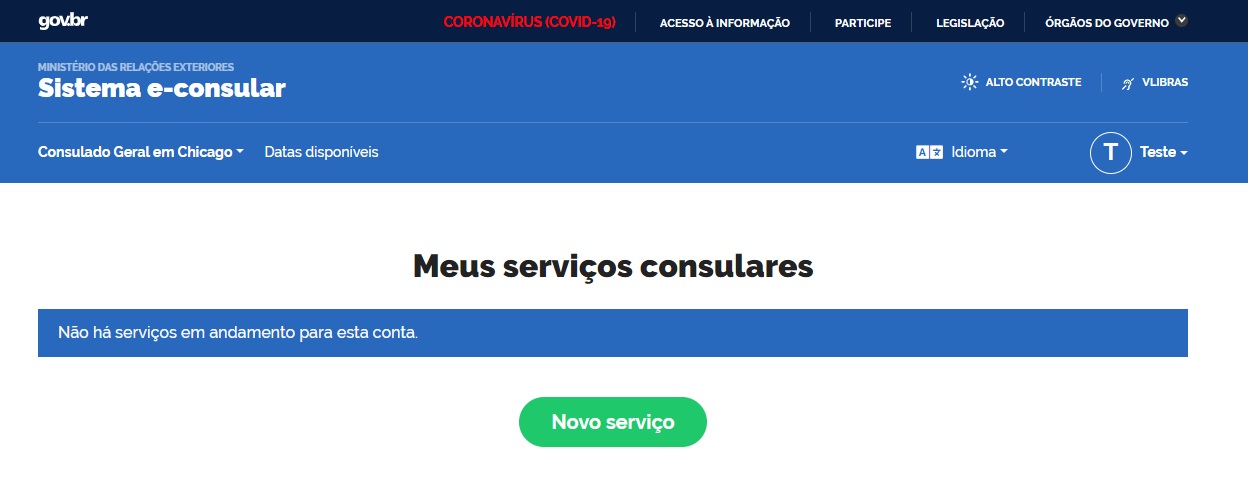
2- After registration and login, you will be automatically redirected to the main page of the e-consular system. Next, you can choose a service by clicking "Novo serviço" (New service) and confirming the request by clicking "Iniciar Serviço" (Start Service).
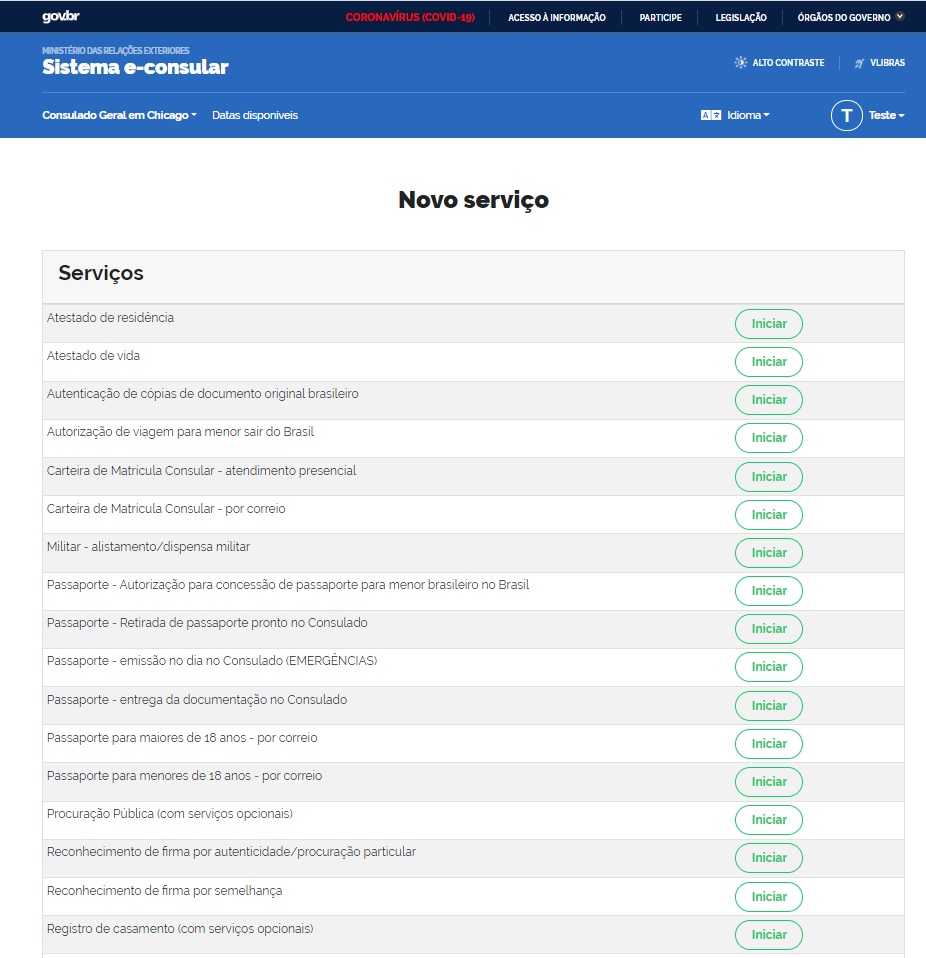
3- Select the desired service and click "Iniciar" (start).
4- Confirm that you want to start the service request by clicking on "Iniciar serviço" (start service).


FILLING OUT THE INFORMATION
5- Read the instructions and fill in all fields with the information requested. Choose whether the service is being requested for yourself or on behalf of someone else ("Outra pessoa").

6- Fill in your information and upload images or take pictures of the required documentation in each field of the electronic form.

7- At the bottom of each page, click "Próxima etapa" (Next Step).
COMPLETING THE REQUEST
8- Read and accept the system's statements and terms of use.
Note: You must bring the original documents submitted online and a USPS Money Order to pay for the service.

9- After completing all the steps above, a verification page will pop up for you to double-check your information.
10- If all information is correct, submit your application for the consulate staff validation by clicking the green button "Confirmar e enviar" (Confirm and submit).

REQUEST SUBMITTED SUCCESSFULLY
11- After confirming, a message in a green box will be shown on your screen informing that the request was submitted successfully.

CONSULATE ANALYSIS
12- After completing and submitting the application, the request will be analyzed by the consulate in a process called validation. Within 10 business days, the Consulate staff will send an email authorizing the appointment scheduling or requesting additional information. You can also check the validation progress in the e-Consular system in the "Meus serviços" (My services) tab.
REQUEST CORRECTION (INVALIDATION)
13- If the applicant receives an email with pending issues (invalidation), they must make the corrections and submit the application again.


14- All pending issues will be described on the service request page in the e-Consular. In this case, make the suggested corrections and submit the request again for validation using the "Confirmar e enviar" (Confirm and send) button.


VALIDATION
15- If your documentation is correct, the application will be validated, and you will be able to see the available timeslots for appointment scheduling in the e-Consular system. After validation, the applicant will also receive an email with guidelines on appointment procedures. For some services, sending by mail will also be an option.

Note: The consulate performs its services by office appointment or by mail. The options available for each service and the instructions are on our website at https://www.gov.br/mre/pt-br/consulado-chicago/servicos-consulares